A quick post, this one. Via RPS, Indie Royale is a nice new site that has a 4-game bundle up at a great price. Their opening catalogue is quite good — I’ve had my eye on Sanctum for awhile now, and Gemini Rue looks nice as well. I had some difficulty getting paypal’s new bloody interface to accept my login, but that wasn’t going to stop me from paying :)
Author: Arun
Tech: Linux / Emacs / Python / Platforms.
Reading: Classic Literature / Science Fiction / Science. e.g. Nabokov, Dawkins.
Playing: Single Player stuff mostly (Xbox One).
3DS early impressions
I came home (late) on Friday night, to find my (totally awesome) wife waiting for me with (an incredible) gift— a Nintendo 3DS! She must’ve actually been listening to me all these months when I’ve been moaning about not having one. I still haven’t got a 3DS game yet, but my DS games work fine. Yay for backward compatibility!
I’ve since checked out the eShop, and downloaded good old Excite Bike, TwinBee, and Cave Story. A system update was required before the Browser and eShop were unlocked.
Thankfully, there are a lot more applications installed by default than in the original DS, which is little more than a gaming device. The 3DS comes with a totally neat camera that takes pictures in 3D. There’s an mp3 player included as well. Also included are two nice Augmented Reality games that look really great.
Next up: getting a 3DS game (Street Fighter 4 maybe?)
Finally went ahead with installing TrueCrypt..
..and it was embarrassingly easy. I was worried that it wouldn’t support my /home, which is a ReiserFS filesystem. I needn’t have worried: you can create Truecrypt volumes even on individual files, not just on separate partitions. Here’s how I went around doing it (on a stock Slackware 12 box, as usual):
Download and install DeviceMapper and TrueCrypt, in that order.
Touch a file called tc.txt anywhere. Mine is in /mnt. And then:
truecrypt -c /mnt/tc.txt
Follow the simple steps that appear, the defaults are pretty okay.
Then jump to the Gentoo wiki’s nice page on TrueCrypt to make an ext2 filesystem of your newly created volume.
Mount the volume to a folder using truecrypt /mnt/tc.txt /mnt/encAnd unmount using truecrypt -d
Add aliases for convenience (again, see the Gentoo wiki) to the normal user, and add that user to the sudoers list, so that a root login isn’t needed each time the TrueCrypt volume needs to e mounted.
And in less than an hour of fiddling around, I have this neat 500 MB volume, alas with nothing really secretive that I can store in it. Fun, atleast.
IPv6 on Slackware HOWTO
Okay, here’s a quick and easy HOWTO on getting IPv6 running on your Linux box. I’m using a stock Slackware 11 box, so this should work pretty much the same anywhere else (unless you already have it enabled).
Check whether or not your kernel already has the IPv6 modules loaded:
/sbin/ifconfig -a | grep inet6
Load the module and see the results:
modprobe ipv6
You should now be able to ping to localhost:
ping6 ::1
PING ::1(::1) 56 data bytes
64 bytes from ::1: icmp_seq=1 ttl=64 time=0.095 ms
64 bytes from ::1: icmp_seq=2 ttl=64 time=0.074 ms
64 bytes from ::1: icmp_seq=3 ttl=64 time=0.071 ms
If you’re behind a NAT, your best option is probably in getting a tunneling client that’ll encapsulate your v6 packets in v4 and then send them across. I found a very nice one: Freenet6’s Gateway6 client. Download the package and install it. Installation is as easy as a gmake all and a gmake install. The executable is called gw6c. A config file (gw6c.conf) is also needed.
I haven’t registered with Freenet6 yet, so I connect as an anonymous user, and an IPv6 address is given to me from a pool. I went through the guide included in the package, but I didn’t have to change a thing in the config file, and the defaults allowed me to connect to their broker.
You’re all set now! Check out the Kame website; if you see a dancing turtle, you’re all done! Just in case you’re wondering about existing IPv4 websites and such, don’t worry: Both A and AAAA DNS queries are made, so if a website is not IPv6 enabled, you’ll still be able to access it without any problems.
Further on..
This comprehensive HOWTO really gives you bucketloads of information in case you’re interested.
If you’re happy with the changes and want to make them permanent, you might want to add the modprobe ipv6 line in your /etc/rc.d/rc.modules file, and another rc file in /etc/rc.d to start your client.
Playing with the GIMP
For some reason or the other, people always seem to be complaining about the GIMP. For some its the ‘absurd’ name, for others, it’ll never reach Photoshop’s levels. I for one think the acronym for the GNU Image Manipulation Program is a perfectly sensible name. And since I’m not a professional artist or something, the (possibly) legitimate drawbacks it has doesn’t affect me the least bit, the few times I happen to use it.
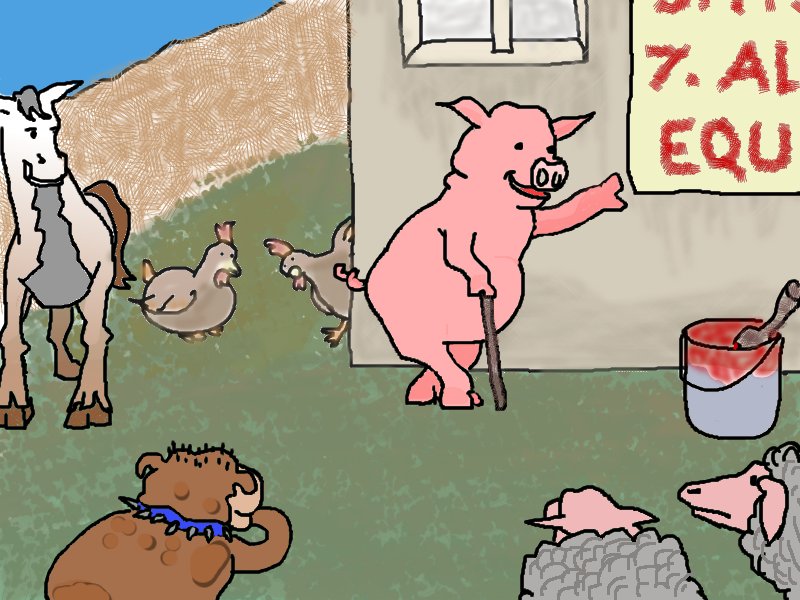
I personally think its a fantastic tool, and I’ve had no problems whatever in getting acquainted with it. Alright, there’s always going to be criticism for any project I guess, as long as its constuctive its fine. Anyways here’s a picture I made today using only the GIMP. Its hopelessly bad but it was fun doing it :)

My current favourite windowmanager: Ion3
I haven’t got the fastest of machines, so Desktop Environments like Enlightenment & KDE, although incredibly cool, are out of the question for my day to day use. In my quest for a lightweight WM, I have tried Fluxbox, WindowMaker, Fvwm, and a few others. All of these are really neat in their own ways, but the one I finally ended up settling with is Ion3.
Here’s a screenshot of my desktop running Ion3:

That’s all it looks like! Some things that make it stand apart from most other WMs are:
- The keyboard is king here. The whole WM centers around minimizing mouse usage as much as possible. Once you’ve configured the keybindings to your liking you won’t believe how fast and productive you’ve become!
- There are no pretty much no overlapping windows: Every application gets the whole screen all for itself. You can have more than one app in different tabs of the same workspace, and also add as many workspaces as you want.
The nice thing about it is that it doesn’t stubbornly stick to its principles at the cost of usability: if you want floating windows for certain apps (Gaim and the Gimp come to mind), you can do that too. It’s only the default behaviour that uses tabbed windows. One of the first things I did was to change the keybindings: the defaults are F1, F2, etc which conflict with Midnight Commander’s keys. So everything on my Ion is Mod4+F1, Mod4+F2, etc (where Mod4 is the Windows key).
Ion uses a scripting language called Lua for a lot of things (forgive me for being hazy here, I’m kinda blank in these areas). So the point is that you don’t even need to such things to get comfortable with it. Install with it, fiddle around (F1 throws the man page by default), just give this window manager a try: its worth the minimal effort!